Black and White Lightroom Presets (Mobile and Desktop)
Black and White Lightroom Presets (Mobile and Desktop)
FOREVER IN STYLE
Hello dear one!
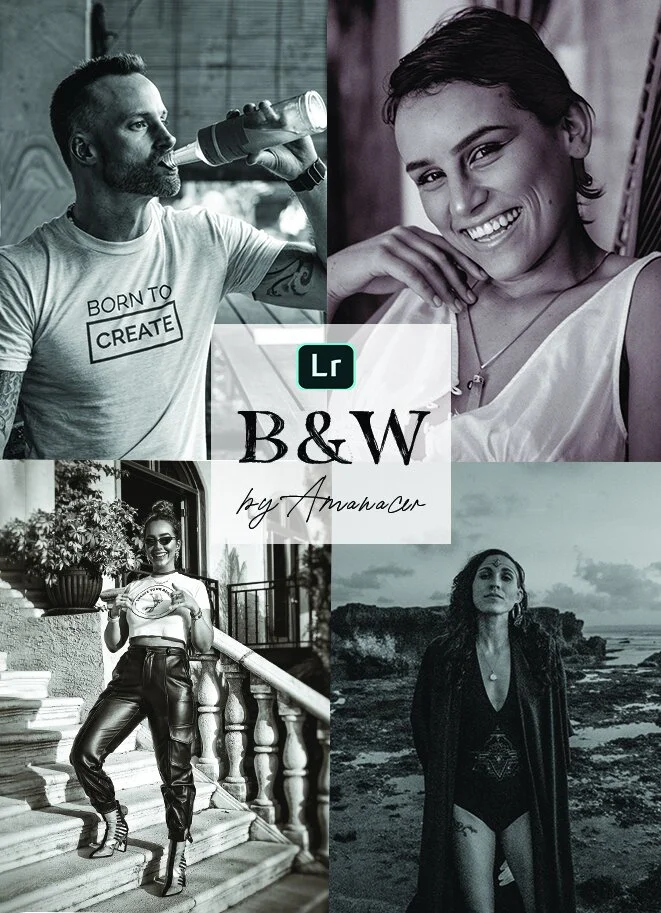
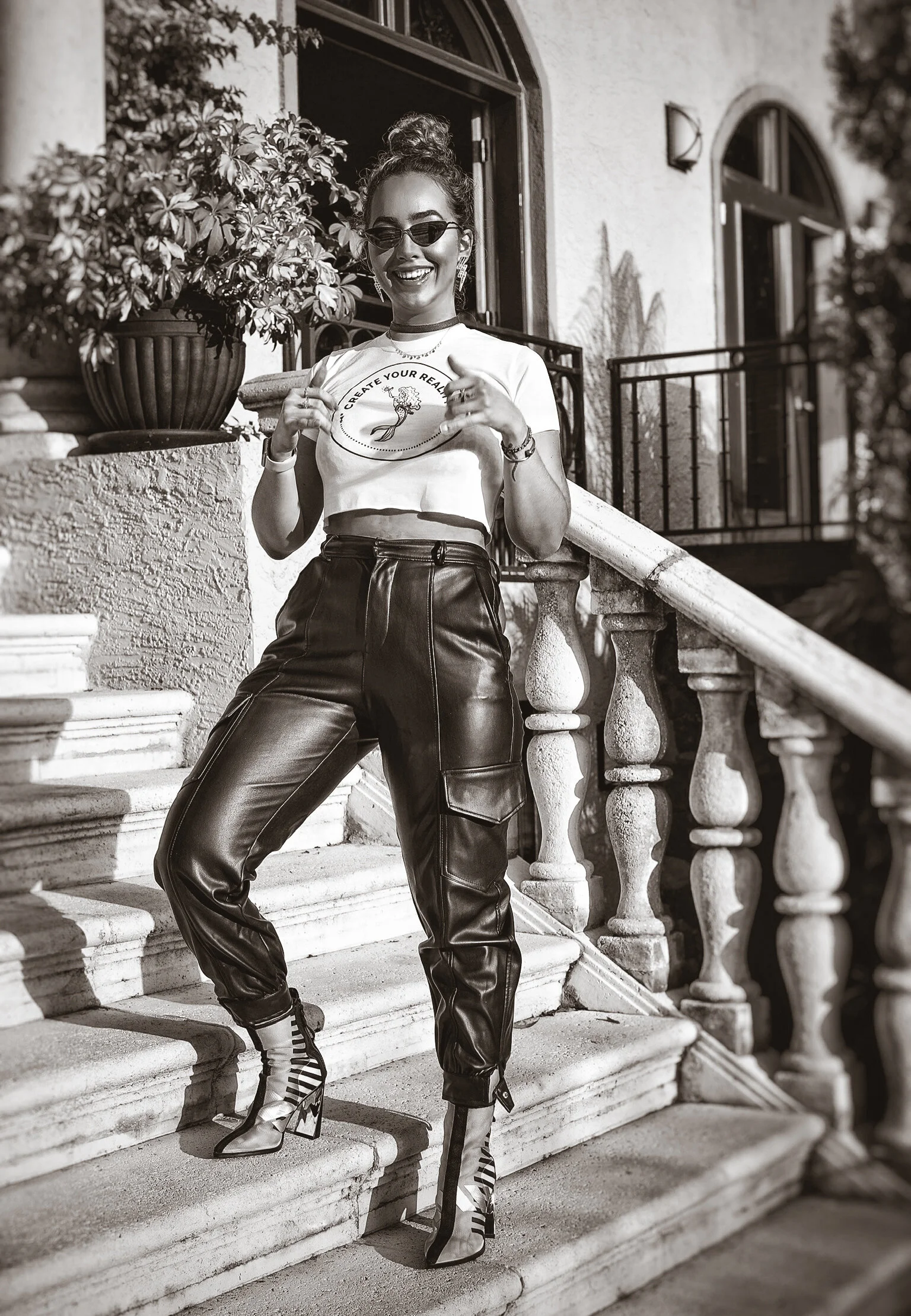
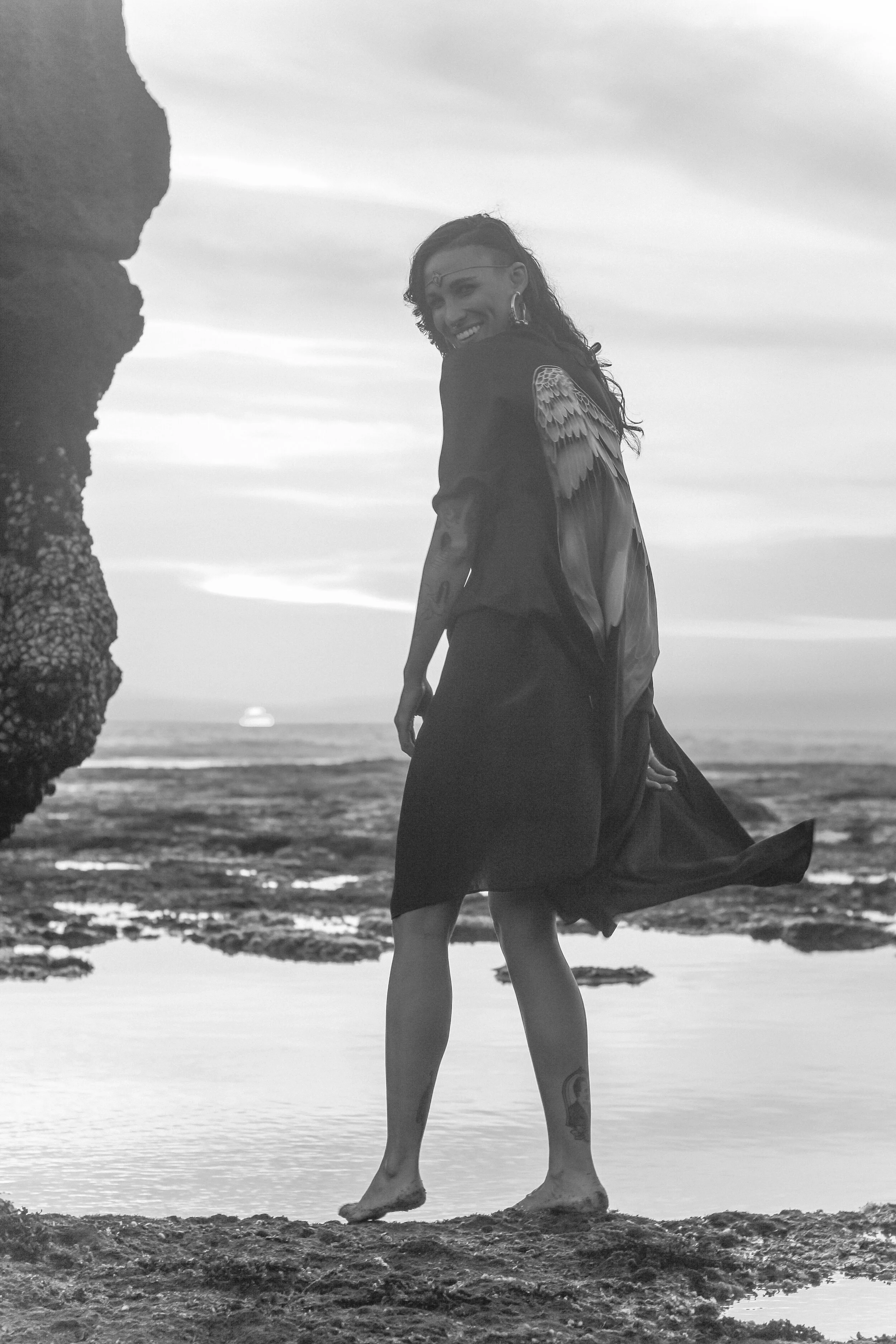
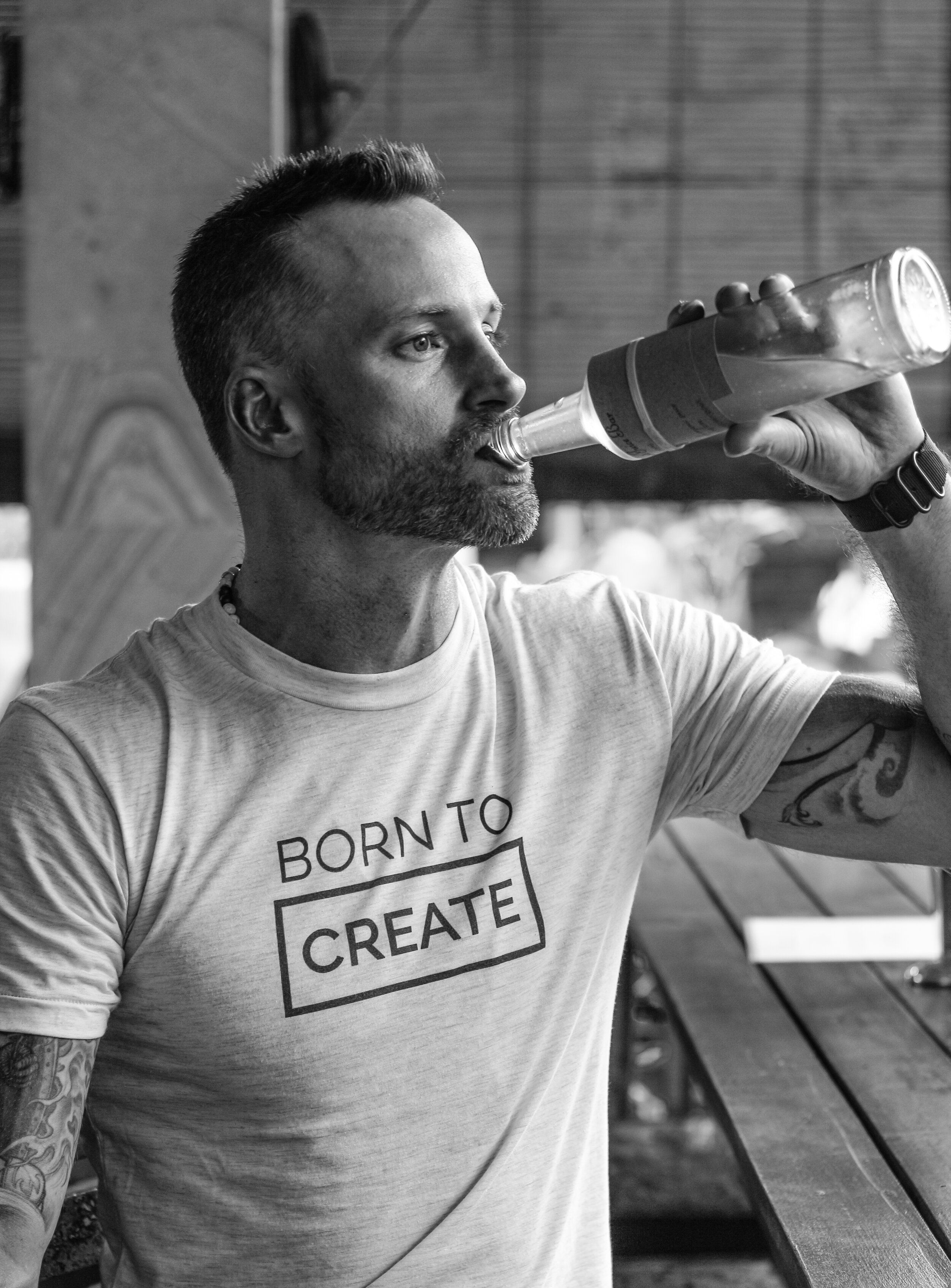
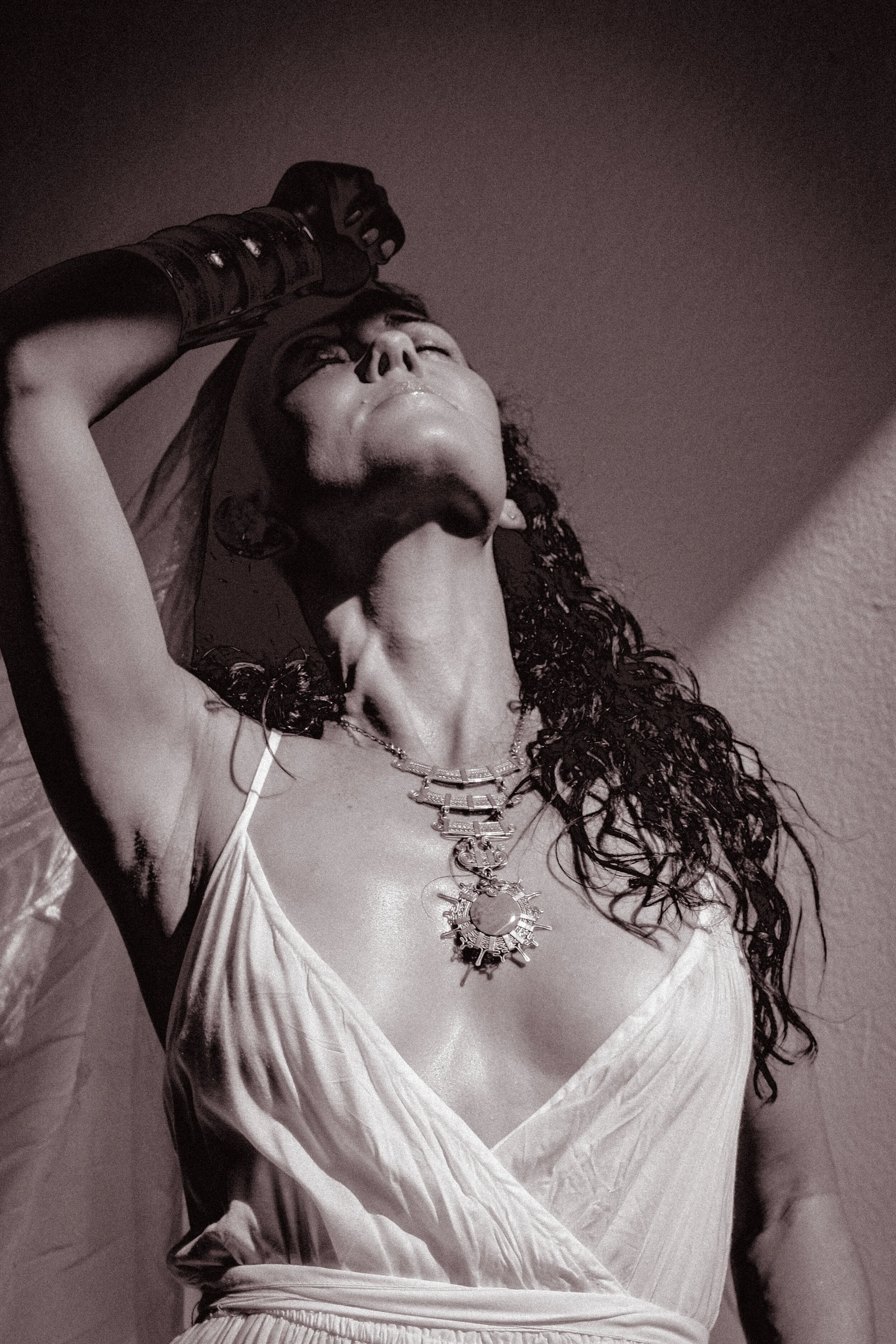
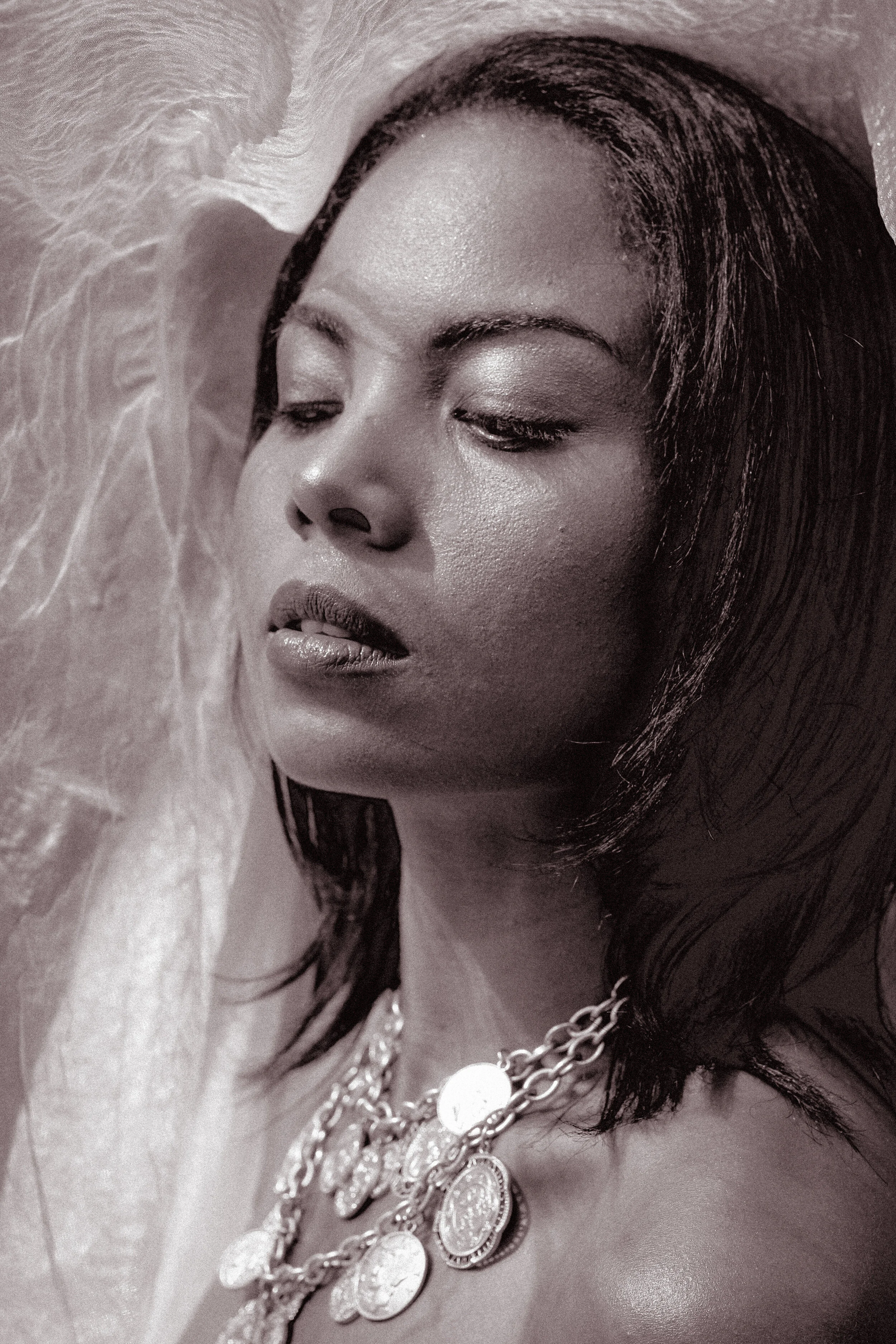
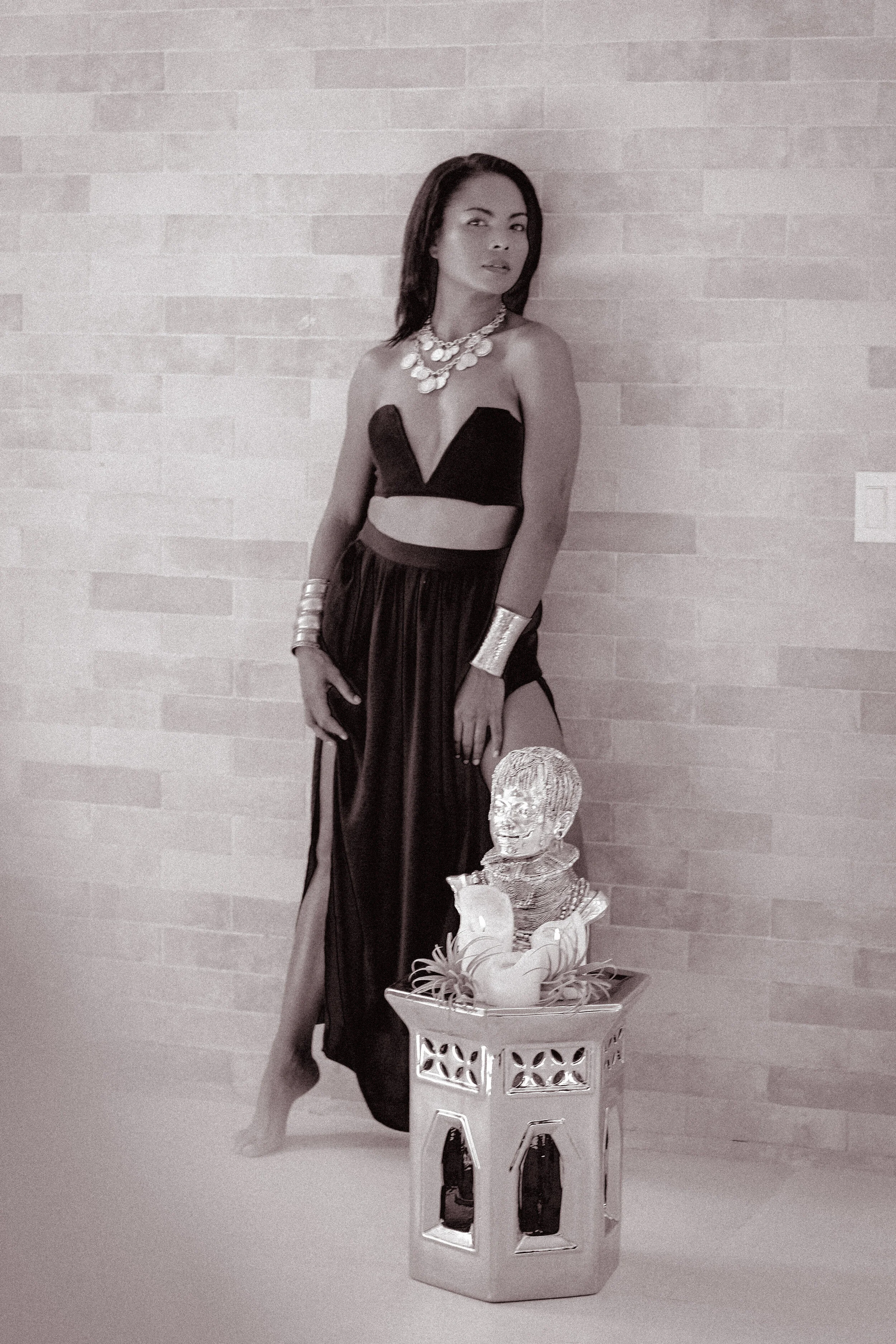
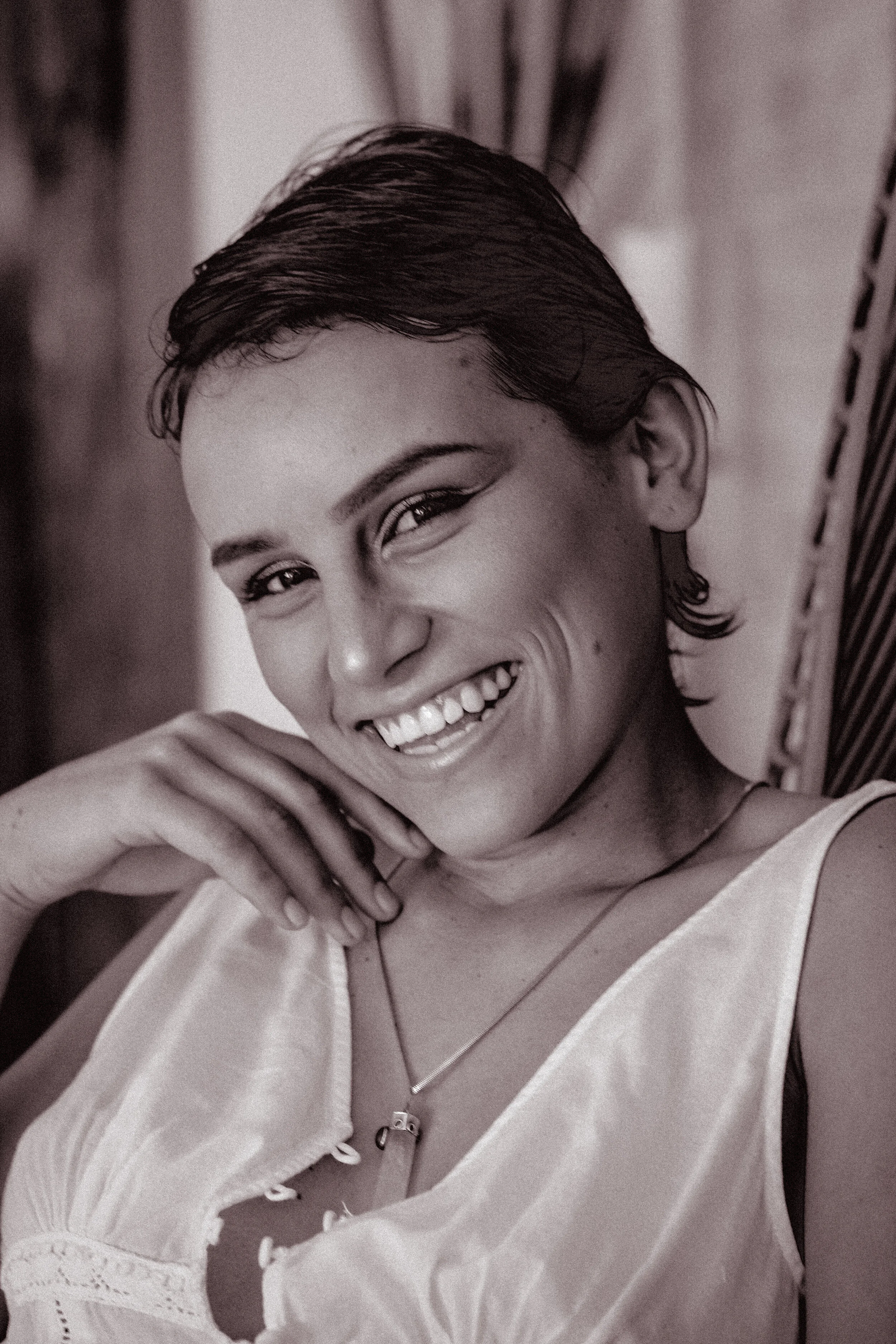
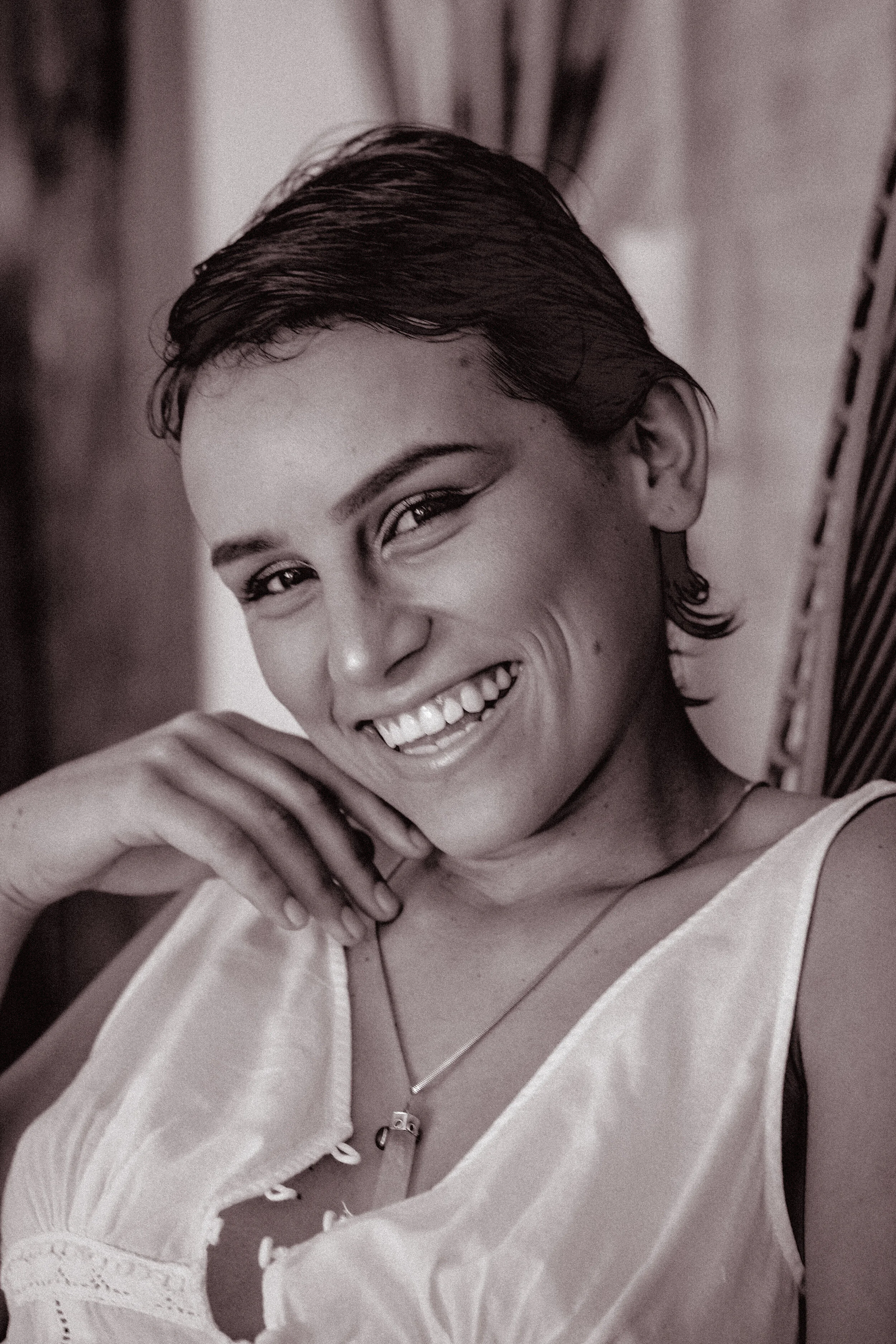
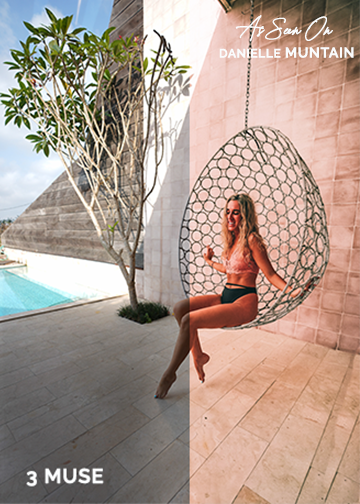
It’s just an ancient photography fact that everyone looks better in black and white. These Lightroom Presets will transform your cell phone images into timeless art. The sample photos were shot on an Iphone 11.
Black & White Presets
PHY
AYIITI
FRANCESCA
CAM
MAIA
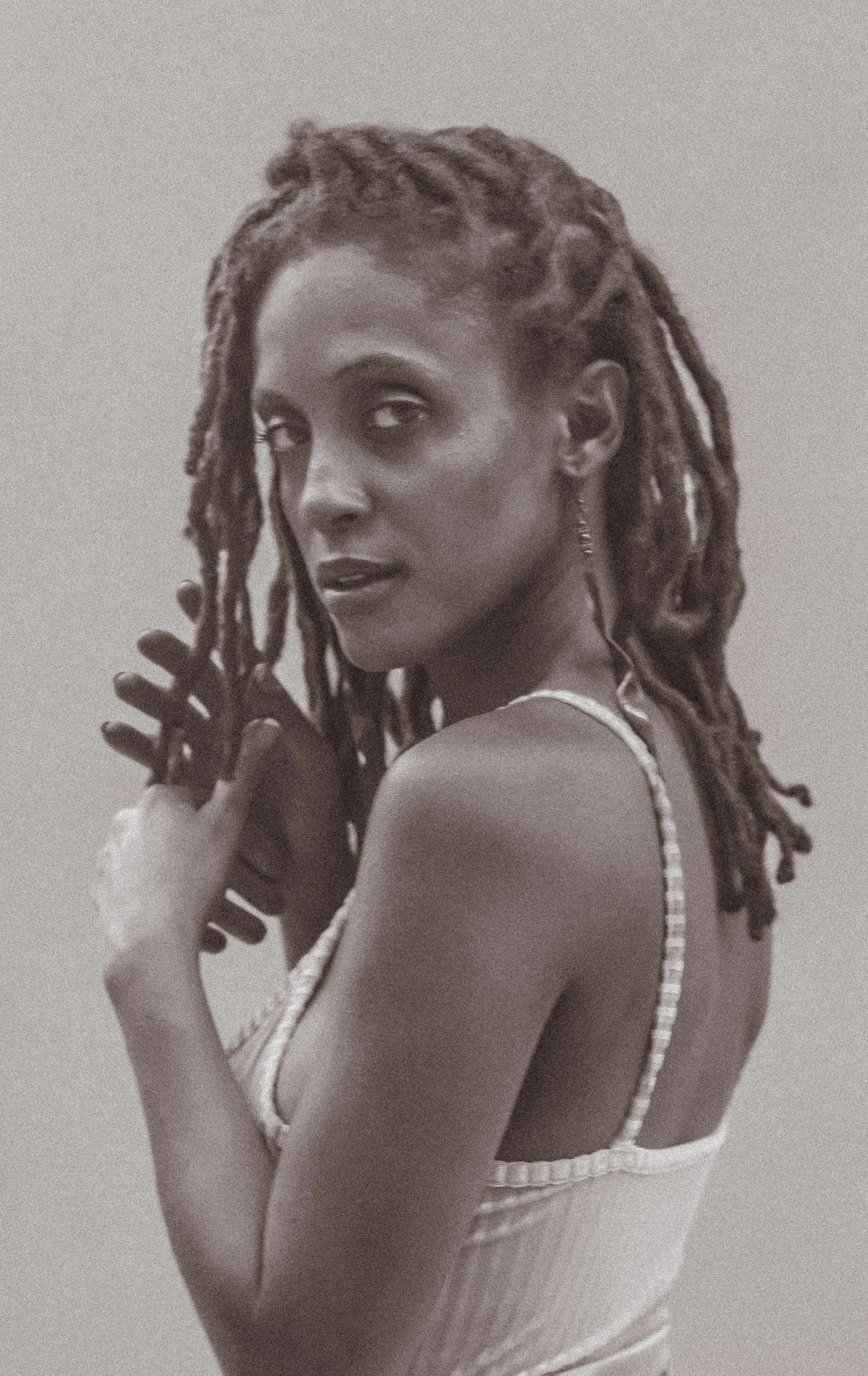
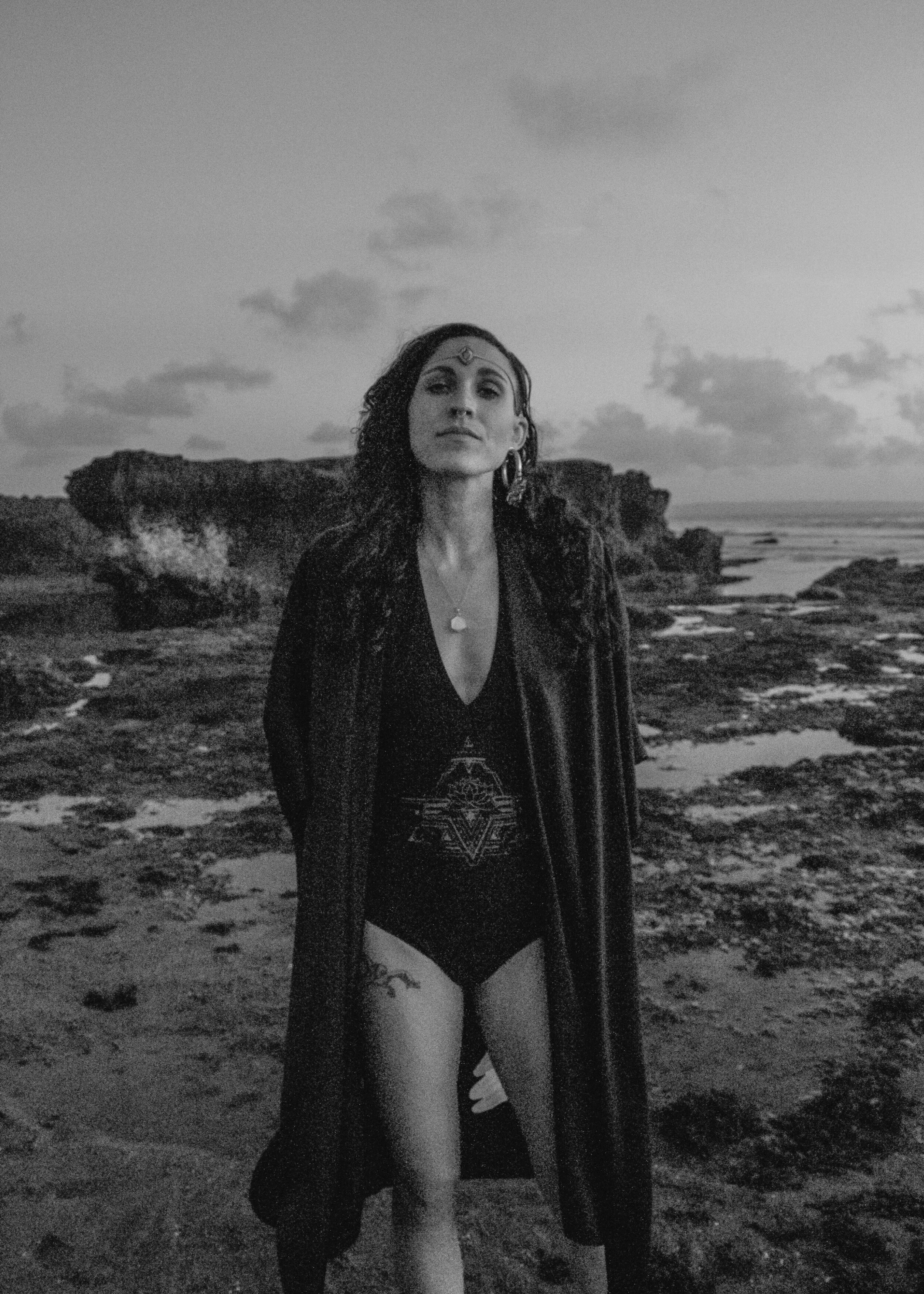
These are the exact Lightroom edits (presets) I developed to use for celebrity photoshoots like the singer-songwriter Ayiiti in Preset 02, and global seer, Francesca, in Preset 03.
You receive two sets of in the download. They work on Lightroom Mobile and Desktop.
I’m excited to see how you play with these ultra flattering black and white presets!
Step by Step Installation instructions are included below.
HELPFUL LINKS AND FAQS
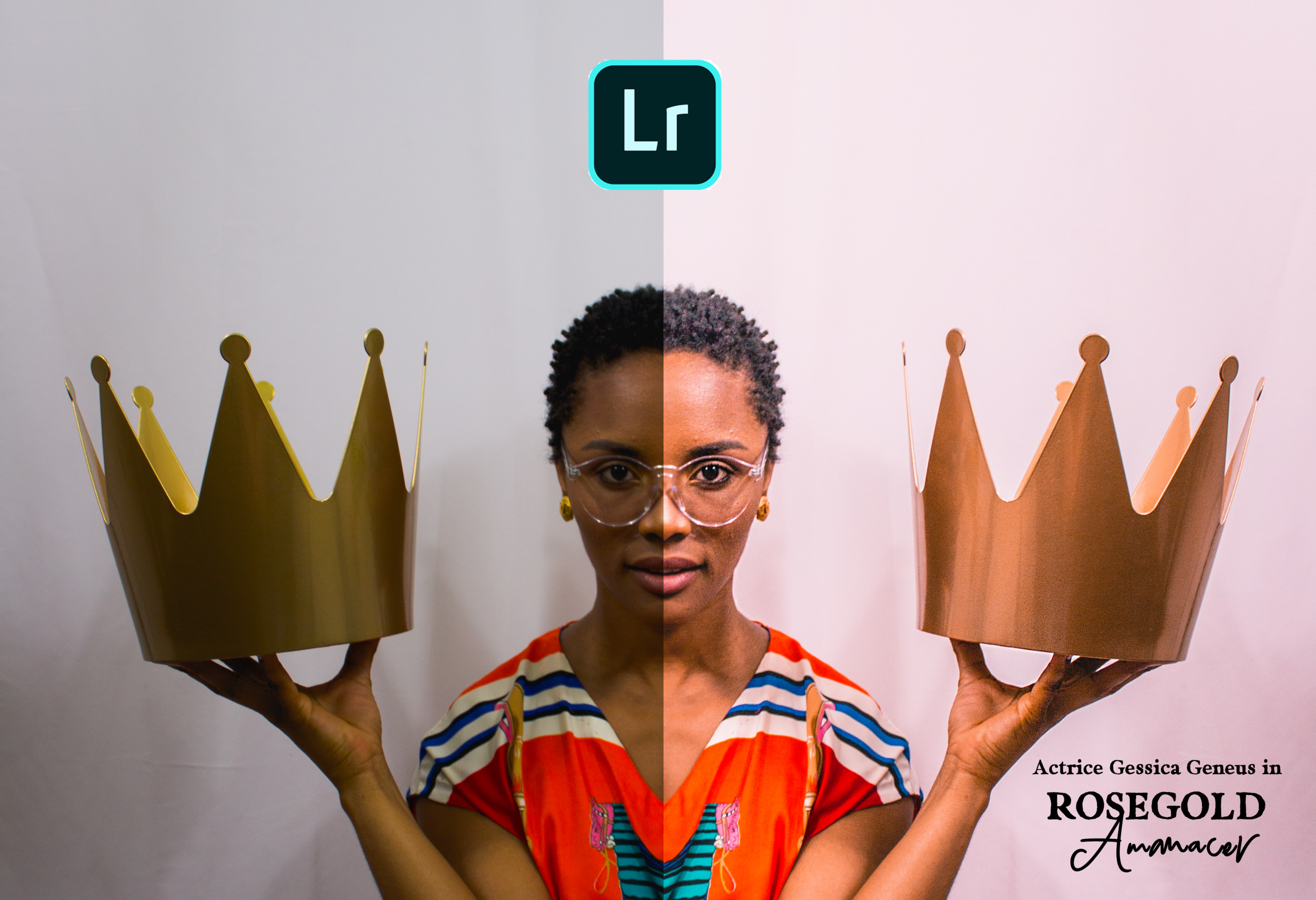
Rosegold Preset Pack - CROWN Preset was used to transform this image of Haitian Actor and Film Director Gessica Geneus.
Adobe offers 3 different versions. Two versions are for PC: Lightroom CC and Lightroom Classic CC and the third one is for smartphones: Lightroom Mobile where you can use Lightroom mobile presets too. The fullest and most powerful is Lightroom Classic CC, widely used by photographers (me too). This software is friendly for both Mac and Windows.
If you prefer to work with mobile presets, then download the Lightroom CC Mobile app onto your phone. Do you have an an iPhone or Android? it makes no difference! PRO TIP: I recommend you downloading a free Dropbox app to download presets onto your phone. It’s the quickest way to transfer the files and starting creating next-level images.
LIGHTROOM MOBILE PRESET INSTALLATION INSTRUCTIONS
The only thing you need is a FREE Lightroom CC Mobile Application, which is available for iOS and Android devices. Access, edit, organize, and share photos on your iPad, iPhone, or Android device and edit your photos using my mobile presets on the go.
As promised, below are detailed instructions on how to use .dng files in Lightroom Mobile. It should only take you a few minutes to get started on your .dng files in Lightroom Mobile.
Grab your phone. Open the Drop Box Folder Containing the Rosegold Preset Files (They are in .dng format)
Save the 18 .dng Images to your phone, for example on your Camera Roll (Important note: they will likely show up as blank or invisible images. Don’t panic, this is normal.)
Open Adobe Photoshop Lightroom for Mobile
Click on the (...) Settings Button and choose Add Photos option
Choose the location on your phone (for example Camera Roll) where you downloaded and unzipped Beart-Presets .dng files
Double click on Amanacer Rosegold Presets .dng file you would like to work with
The .dng file will install in Lightroom Mobile
Select the .dng file you just installed, then click on the (...) Settings Button and click on the Copy Settings.
To finish up, you are essentially going to copy and paste Amanacer’s filter from the .dng file onto a photo in your Lightroom Mobile Library.
Click on Select All, then unselect Crop setting and click on OK button
Choose a picture you would like to edit in Mobile Lightroom
Click on the (...) Settings Button and then click on the button Past Settings …and Voila!
Now click “Save as New Preset.” You give the image you just created a preset name like AMANACER-GLOW
LIGHTROOM DESKTOP PRESET INSTALLATION INSTRUCTIONS
HOW TO INSTALL LIGHTROOM 4, 5, 6 & CC 2017 DESKTOP PRESETS FOR WINDOWS
Open Lightroom.
Go to: Edit • Preferences • Presets.
Click on the box titled: Show Lightroom Presets Folder.
Double click on Lightroom.
Double click on Develop Presets.
Copy the folder(s) of your presets into the Develop Presets folder.
Restart Lightroom.
HOW TO INSTALL LIGHTROOM 4, 5, 6 & CC 2017 DESKTOP PRESETS FOR MAC
Open Lightroom
Go to: Lightroom (Dialogue) • Preferences • Presets
Click on the box titled: Show Lightroom Presets Folder
Double click on Lightroom
Double click on Develop Presets
Copy the folder(s) of your presets into Develop Presets folder
Restart Lightroom
LIGHTROOM FAQS
WHAT IS A LIGHTROOM ?
Lightroom is a professional photo editing program available in mobile and desktop versions. Lightroom is the professional photographer’s tool of choice because it allows such precise editing. For example, it allows you to change each color in the photo separately which gives the cool effects you see on social media, wedding photos and anywhere great photos are being shared!
WHAT IS A PRESET?
Presets are like filters that combine several different editing actions saved into 1 file. When you add presets to Lightroom, they instantly change your photos to look like the demonstration photo, although optimizing the brightness may be required.
HOW IS A PRESET MADE?
Since there are so many different settings you can adjust, Lightroom allows you to save a group of settings or editing adjustments as a “preset”, which you can later apply instantly on other photos. Using a single preset or preset pack gives the coherence and polish to an Instagram feed that sets the amateurs apart from the pros. The values of whites and exposure, color shades and intensity are all manipulated for you. And it’s accessible to everyone!
WHAT IS THE DIFFERENCE BETWEEN A PRESET AND A FILTER?
A preset is similar to a filter because you can apply it to different photos in one click. But it’s better than a filter, because after you apply it you can still adjust parts of it without having to change the whole preset. For example, you can adjust just the intensity of the ocean blues in the picture, without affecting the colors in the sunset…all on your phone.
IS IT REALLY ONE-CLICK?
Yes. You apply the preset onto your photo in a single click. However, you may want to adjust basic settings like brightness in your photo for the best outcome. For example, if your image was shot in low lighting indoors then the preset will look better if you increase the brightness. Try different presets on your photo before landing on your signature style.
ARE PRESETS A GATEWAY DRUG?
Absolutely, yes. Are you ready to love photography more than ever before? Many travel photographers, successful businesses and Instagram influencers I know started out buying other’s presets for their photos. Myself included! It grants you access to a photographer’s trade secrets without the $600-10,000 a shoot pricetag. You can then tinker with the settings, and let it serve as a good jump-off point for learning to use Lightroom like the pro yourself.
This is how I (Amanacer) got my start. I learned to use Lightroom via Instagrammer Gabscanu’s presets. Then I was able to quadruple my own social media following and help my mom grow her eco-luxury bed and breakfast business to 4,000 engaged followers in a year too! I think it was her photos of cinnamon buns…
Are We Hanging Out on the Gram Yet?